The AB Electronics UK Knowledge Base provides support solutions, tutorials and troubleshooting guides.

YOU WILL NEED THIS BOARD
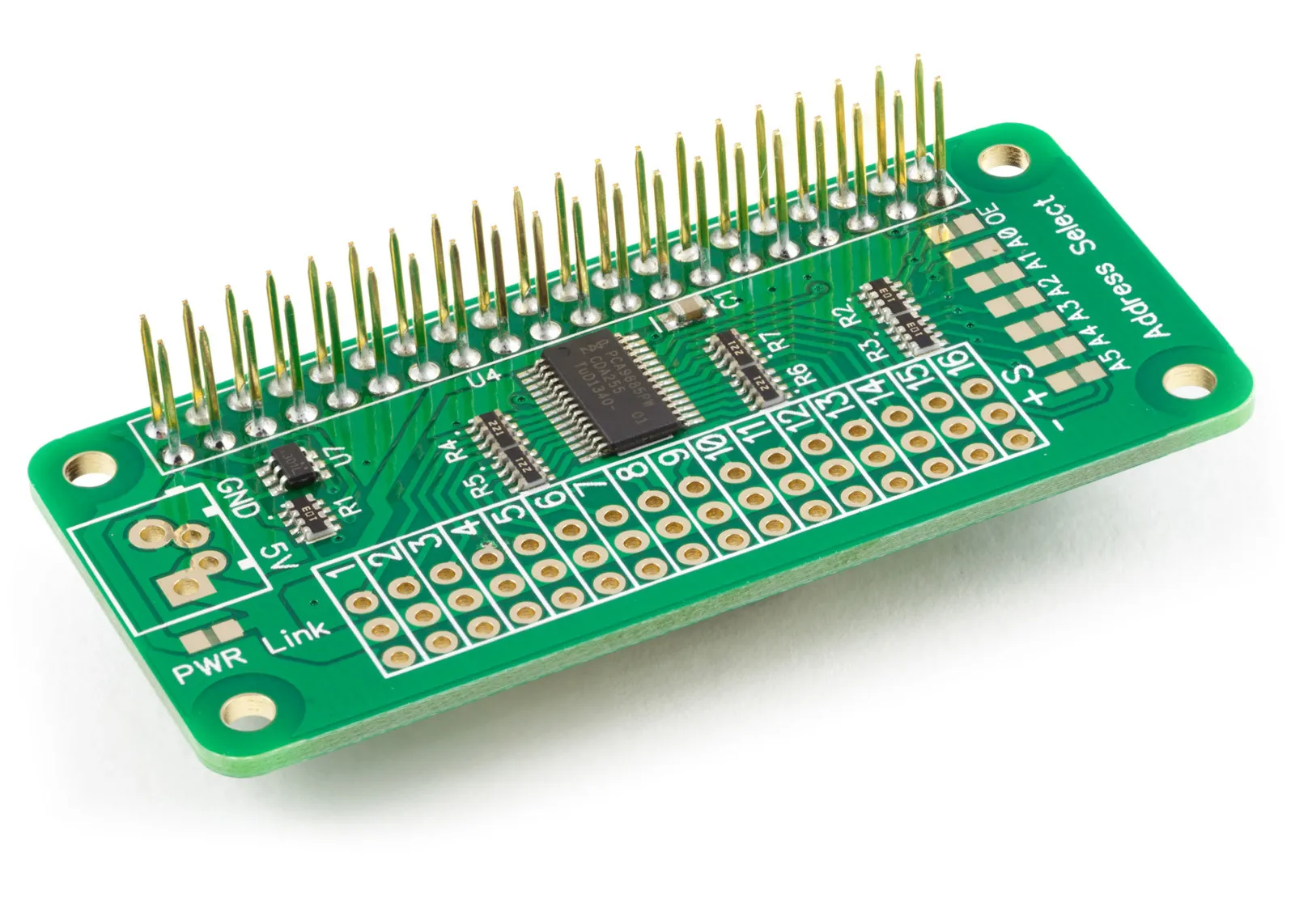
Servo PWM Pi
16 Channel 12-bit PWM and Servo Driver with I2C interface using PCA9685 for driving LEDs and RC servos
£8.54 ex VAT
You will need this board: Servo PWM Pi - 16 Channel 12-bit PWM and Servo Driver using the PCA9685
This tutorial will use a Servo PWM Pi with an ESP32-P4 development board running ESPHome. We will start by dimming a single LED from a web page, then build a chase that fades each of the 16 channels up and down in turn. Finally, we will look at how to change the configuration to drive an RC servo. You will need a Waveshare ESP32-P4-Module-DEV-KIT, a Servo PWM Pi, a 5V power supply, up to 16 LEDs and, for Stage 4, an analogue RC servo.
We will use the ESPHome Device Builder to write the configuration and install it on the ESP32-P4. ESPHome Device Builder runs as a Home Assistant add-on or as a standalone app on your computer; see the ESPHome getting started guide if you have not installed it yet.
We are using the Waveshare ESP32-P4-Module-DEV-KIT for this tutorial because it has a 40-pin GPIO header with the same layout as the Raspberry Pi, so the Servo PWM Pi plugs straight onto it. The ESP32-P4 does not have Wi-Fi built in; the DEV-KIT includes an ESP32-C6 co-processor that provides Wi-Fi, and ESPHome talks to it using the esp32_hosted component.
Stage 1 - Setting up the ESP32-P4
Make sure the ESP32-P4-Module-DEV-KIT is disconnected from power, then line up pin 1 on the Servo PWM Pi with pin 1 on the 40-pin header of the DEV-KIT and press the Servo PWM Pi down firmly onto the pins. On the DEV-KIT, the I2C bus uses GPIO7 for SDA on header pin 3 and GPIO8 for SCL on header pin 5.
For safety, the Servo PWM Pi is not connected to the 5V pin on the GPIO header, so the outputs need their own 5V supply. Connect your 5V power supply to the 5V and GND pads on the Servo PWM Pi. The DEV-KIT and the Servo PWM Pi share a ground through the header, so make sure the two supplies have no voltage difference between their grounds.
If you are only driving a few LEDs and the total current is below 300mA, you can instead bridge the PWR Link pads with solder to power the Servo PWM Pi from the header. Servos draw much more current than this, so always use a separate supply for them.
Open ESPHome Device Builder and click New Device. Give your device the name p4-pca9685-pwm, choose ESP32-P4 as the device type and click Skip to finish the wizard without installing. Then click Edit on the new device card to open the configuration file. Keep the api encryption key and the ota password that the wizard created, and replace the rest of the file with the sections below.
The first part of the configuration is the same as in our other ESP32-P4 tutorials. It sets the device name, the ESP32-P4 chip, the ESP32-C6 Wi-Fi co-processor, the logger, Wi-Fi, the web server and the I2C bus.
substitutions:
  name: "p4-pca9685-pwm"
  friendly_name: "P4 PCA9685 PWM Demo"
esphome:
  name: ${name}
  friendly_name: ${friendly_name}
esp32:
  board: esp32-p4-evboard
  flash_size: 16MB
  framework:
    type: esp-idf
esp32_hosted:
  variant: ESP32C6
  active_high: true
  reset_pin: GPIO54
  cmd_pin: GPIO19
  clk_pin: GPIO18
  d0_pin: GPIO14
  d1_pin: GPIO15
  d2_pin: GPIO16
  d3_pin: GPIO17
logger:
  level: DEBUG
  hardware_uart: UART0
api:
ota:
  - platform: esphome
wifi:
  ssid: !secret wifi_ssid
  password: !secret wifi_password
web_server:
  port: 80
  version: 3
  log: true
i2c:
  sda: GPIO7
  scl: GPIO8
  frequency: 400kHz
  scan: true
Paste the encryption key and password that the wizard created back into the api and ota sections, and check that wifi_ssid and wifi_password are set in Secrets.
Stage 2 - Dimming an LED
The Servo PWM Pi is based on the PCA9685 PWM controller from NXP. It has 16 outputs, and each one can be set to a duty cycle from 0% to 100% in 4096 steps. All 16 outputs share one PWM frequency, which can be set from around 40Hz to 1000Hz.
Each output on the Servo PWM Pi has a 220R current-limiting resistor, so you can connect an LED directly between an output and ground without an extra resistor. Connect an LED to channel 1, with the long leg on the output pin and the short leg on ground.
First, we tell ESPHome about the PCA9685.
pca9685:
  - id: pwm_hub
    address: 0x40
    frequency: 1000
The PCA9685 on the Servo PWM Pi uses I2C address 0x40. If you have set the address selection solder bridges on your Servo PWM Pi, change the address to match; the I2C scan in the log will show you the address it finds.
frequency sets the PWM frequency in Hz. At 1000Hz, the LED switches on and off 1000 times a second, which is fast enough that you see a steady light with no flicker.
Next, we create an output for the first channel.
output:
  - platform: pca9685
    pca9685_id: pwm_hub
    id: pwm_0
    channel: 0
An output in ESPHome is a value from 0.0 (off) to 1.0 (fully on). pca9685_id tells ESPHome which chip the output belongs to, and channel picks the output on the chip. ESPHome numbers the channels from 0 to 15, so channel 1 on the Servo PWM Pi is channel 0.
An output on its own has no controls on the web page, so we wrap it in a light.
light:
  - platform: monochromatic
    name: "PWM 0"
    id: led_0
    output: pwm_0
    default_transition_length: 0.5s
A monochromatic light is a single-colour light with a brightness control. It gives you an on/off switch and a brightness slider on the web page, and you can control it from Home Assistant. default_transition_length makes the light fade smoothly over half a second whenever it changes, instead of jumping straight to the new brightness.
To use all 16 channels, copy the output and the light 15 more times, changing the id, the channel and the name for each one. You will find all 16 in the full listing at the end of this tutorial.
Stage 3 - A chase across all 16 channels
Now we have one LED that we can dim from a web page. Let us connect an LED to each of the 16 channels and make a chase that fades each one up and down in turn.
[Image: 16 LEDs connected to the Servo PWM Pi]
We need to remember which channel the chase is on. We do this with a global variable, which keeps its value between runs of the code.
globals:
  - id: chase_ch
    type: int
    initial_value: '0'
chase_ch is a whole number (an int) that starts at 0, the first channel.
Next, we add a switch on the web page to start and stop the chase.
switch:
  - platform: template
    name: "Chase Demo"
    id: chase_enabled
    optimistic: true
    restore_mode: ALWAYS_OFF
    turn_off_action:
      - lambda: |-
          for (auto *l : App.get_lights()) {
            auto call = l->turn_off();
            call.set_transition_length(300);
            call.perform();
          }
A template switch is not connected to a pin; it simply holds an on or off state that other parts of the configuration can check. optimistic: true lets the switch change state as soon as you click it. restore_mode: ALWAYS_OFF makes sure the chase does not start on its own after a restart.
turn_off_action runs when you turn the switch off. The lambda loops through every light in the configuration and fades it off over 300ms, so no LEDs are left on when the chase stops.
The chase itself runs on a timer.
interval:
  - interval: 150ms
    then:
      - if:
          condition:
            switch.is_on: chase_enabled
          then:
            - lambda: |-
                static light::LightState *leds[16] = {
                  id(led_0), id(led_1), id(led_2), id(led_3),
                  id(led_4), id(led_5), id(led_6), id(led_7),
                  id(led_8), id(led_9), id(led_10), id(led_11),
                  id(led_12), id(led_13), id(led_14), id(led_15)
                };
                int cur = id(chase_ch);
                int prev = (cur + 15) % 16;
                auto off = leds[prev]->turn_off();
                off.set_transition_length(400);
                off.perform();
                auto on = leds[cur]->turn_on();
                on.set_brightness(1.0);
                on.set_transition_length(100);
                on.perform();
                ESP_LOGI("pwm", "Chase: channel %d on", cur);
                id(chase_ch) = (cur + 1) % 16;
Every 150ms, the if checks whether the Chase Demo switch is on. If it is, the lambda runs one step of the chase.
The leds array holds the 16 lights in order, so we can pick one by its number. cur is the channel the chase is on now, and prev is the channel before it. (cur + 15) % 16 wraps around, so the channel before 0 is 15.
The lambda fades the previous LED off over 400ms and fades the current LED up to full brightness over 100ms. Because the fade off is slower than the timer, each LED leaves a short tail behind it as the chase moves on.
Finally, ESP_LOGI writes the current channel to the console, and (cur + 1) % 16 moves the chase on to the next channel, wrapping back to 0 after 15.
Stage 4 - Driving an RC servo
The Servo PWM Pi can also drive analogue RC servos; digital servos will not work. An RC servo expects a pulse every 20ms, which is a frequency of 50Hz. The length of the pulse sets the position: around 0.5ms for one end, 1.5ms for the centre and 2.5ms for the other end.
As all 16 channels share one frequency, you cannot drive LEDs at 1000Hz and servos at 50Hz from the same Servo PWM Pi. To use servos, change the frequency in the pca9685 section to 50.
pca9685:
  - id: pwm_hub
    address: 0x40
    frequency: 50
Connect the servo to channel 1: the signal wire (usually yellow or white) to the output pin, the red wire to 5V and the brown or black wire to ground. Make sure the Servo PWM Pi is powered from your external 5V supply, as even a small servo can draw several hundred milliamps when it moves.
Remove PWM 0 from the light section, as the channel is now used by the servo, then add a servo that uses the pwm_0 output.
servo:
  - id: servo_0
    output: pwm_0
    min_level: 2.5%
    idle_level: 7.5%
    max_level: 12.5%
The levels are the duty cycle of the 20ms period. 2.5% of 20ms is a 0.5ms pulse, 7.5% is 1.5ms for the centre, and 12.5% is 2.5ms. If your servo buzzes or hits its end stops, bring min_level and max_level closer to the centre; the datasheet for your servo will give its pulse range.
Finally, we add a slider to the web page to set the servo position.
number:
  - platform: template
    name: "Servo 0 Position"
    min_value: -100
    max_value: 100
    step: 1
    optimistic: true
    set_action:
      - servo.write:
          id: servo_0
          level: !lambda 'return x / 100.0;'
A template number shows a slider from -100 to 100. When you move it, set_action runs servo.write, which takes a level from -1.0 to 1.0. The lambda divides the slider value by 100 to convert it: -100 moves the servo to one end, 0 to the centre and 100 to the other end.
Although the PCA9685 has 4096 steps, only around 200 of them fall within the pulse range an RC servo uses, so the servo moves in small steps rather than perfectly smoothly.
Stage 5 - Installing and testing
That is everything we need for the LED version; your configuration should now look like this.
substitutions:
  name: "p4-pca9685-pwm"
  friendly_name: "P4 PCA9685 PWM Demo"
esphome:
  name: ${name}
  friendly_name: ${friendly_name}
esp32:
  board: esp32-p4-evboard
  flash_size: 16MB
  framework:
    type: esp-idf
esp32_hosted:
  variant: ESP32C6
  active_high: true
  reset_pin: GPIO54
  cmd_pin: GPIO19
  clk_pin: GPIO18
  d0_pin: GPIO14
  d1_pin: GPIO15
  d2_pin: GPIO16
  d3_pin: GPIO17
logger:
  level: DEBUG
  hardware_uart: UART0
api:
ota:
  - platform: esphome
wifi:
  ssid: !secret wifi_ssid
  password: !secret wifi_password
web_server:
  port: 80
  version: 3
  log: true
i2c:
  sda: GPIO7
  scl: GPIO8
  frequency: 400kHz
  scan: true
pca9685:
  - id: pwm_hub
    address: 0x40
    frequency: 1000
output:
  - { platform: pca9685, pca9685_id: pwm_hub, id: pwm_0,  channel: 0 }
  - { platform: pca9685, pca9685_id: pwm_hub, id: pwm_1,  channel: 1 }
  - { platform: pca9685, pca9685_id: pwm_hub, id: pwm_2,  channel: 2 }
  - { platform: pca9685, pca9685_id: pwm_hub, id: pwm_3,  channel: 3 }
  - { platform: pca9685, pca9685_id: pwm_hub, id: pwm_4,  channel: 4 }
  - { platform: pca9685, pca9685_id: pwm_hub, id: pwm_5,  channel: 5 }
  - { platform: pca9685, pca9685_id: pwm_hub, id: pwm_6,  channel: 6 }
  - { platform: pca9685, pca9685_id: pwm_hub, id: pwm_7,  channel: 7 }
  - { platform: pca9685, pca9685_id: pwm_hub, id: pwm_8,  channel: 8 }
  - { platform: pca9685, pca9685_id: pwm_hub, id: pwm_9,  channel: 9 }
  - { platform: pca9685, pca9685_id: pwm_hub, id: pwm_10, channel: 10 }
  - { platform: pca9685, pca9685_id: pwm_hub, id: pwm_11, channel: 11 }
  - { platform: pca9685, pca9685_id: pwm_hub, id: pwm_12, channel: 12 }
  - { platform: pca9685, pca9685_id: pwm_hub, id: pwm_13, channel: 13 }
  - { platform: pca9685, pca9685_id: pwm_hub, id: pwm_14, channel: 14 }
  - { platform: pca9685, pca9685_id: pwm_hub, id: pwm_15, channel: 15 }
light:
  - { platform: monochromatic, name: "PWM 0",  id: led_0,  output: pwm_0,  default_transition_length: 0.5s }
  - { platform: monochromatic, name: "PWM 1",  id: led_1,  output: pwm_1,  default_transition_length: 0.5s }
  - { platform: monochromatic, name: "PWM 2",  id: led_2,  output: pwm_2,  default_transition_length: 0.5s }
  - { platform: monochromatic, name: "PWM 3",  id: led_3,  output: pwm_3,  default_transition_length: 0.5s }
  - { platform: monochromatic, name: "PWM 4",  id: led_4,  output: pwm_4,  default_transition_length: 0.5s }
  - { platform: monochromatic, name: "PWM 5",  id: led_5,  output: pwm_5,  default_transition_length: 0.5s }
  - { platform: monochromatic, name: "PWM 6",  id: led_6,  output: pwm_6,  default_transition_length: 0.5s }
  - { platform: monochromatic, name: "PWM 7",  id: led_7,  output: pwm_7,  default_transition_length: 0.5s }
  - { platform: monochromatic, name: "PWM 8",  id: led_8,  output: pwm_8,  default_transition_length: 0.5s }
  - { platform: monochromatic, name: "PWM 9",  id: led_9,  output: pwm_9,  default_transition_length: 0.5s }
  - { platform: monochromatic, name: "PWM 10", id: led_10, output: pwm_10, default_transition_length: 0.5s }
  - { platform: monochromatic, name: "PWM 11", id: led_11, output: pwm_11, default_transition_length: 0.5s }
  - { platform: monochromatic, name: "PWM 12", id: led_12, output: pwm_12, default_transition_length: 0.5s }
  - { platform: monochromatic, name: "PWM 13", id: led_13, output: pwm_13, default_transition_length: 0.5s }
  - { platform: monochromatic, name: "PWM 14", id: led_14, output: pwm_14, default_transition_length: 0.5s }
  - { platform: monochromatic, name: "PWM 15", id: led_15, output: pwm_15, default_transition_length: 0.5s }
globals:
  - id: chase_ch
    type: int
    initial_value: '0'
switch:
  - platform: template
    name: "Chase Demo"
    id: chase_enabled
    optimistic: true
    restore_mode: ALWAYS_OFF
    turn_off_action:
      - lambda: |-
          for (auto *l : App.get_lights()) {
            auto call = l->turn_off();
            call.set_transition_length(300);
            call.perform();
          }
interval:
  - interval: 150ms
    then:
      - if:
          condition:
            switch.is_on: chase_enabled
          then:
            - lambda: |-
                static light::LightState *leds[16] = {
                  id(led_0), id(led_1), id(led_2), id(led_3),
                  id(led_4), id(led_5), id(led_6), id(led_7),
                  id(led_8), id(led_9), id(led_10), id(led_11),
                  id(led_12), id(led_13), id(led_14), id(led_15)
                };
                int cur = id(chase_ch);
                int prev = (cur + 15) % 16;
                auto off = leds[prev]->turn_off();
                off.set_transition_length(400);
                off.perform();
                auto on = leds[cur]->turn_on();
                on.set_brightness(1.0);
                on.set_transition_length(100);
                on.perform();
                ESP_LOGI("pwm", "Chase: channel %d on", cur);
                id(chase_ch) = (cur + 1) % 16;
The full listing uses a shorter way of writing each output and light, with the settings in curly brackets on one line. It works in exactly the same way as the longer form we used above.
If you change the configuration for servos in Stage 4, also remove the globals, switch and interval sections. The chase lambda refers to every light from led_0 to led_15, so ESPHome will report an error if any of them is missing.
Click Save, then Install. For the first install, choose Plug into this computer and connect the DEV-KIT to your computer with a USB cable. After the first install, you can choose Wirelessly to update the board over Wi-Fi.
When the install finishes, the log window opens. The I2C scan should find the PCA9685 at 0x40 and the ES8311 audio chip on the DEV-KIT at 0x18. You may also see the PCA9685 answer at 0x70, which is its All Call address for talking to every PCA9685 on the bus at once.
Open a web browser on the same network and go to http://p4-pca9685-pwm.local. If that address does not work on your computer, use the IP address shown in the log after the board connects to Wi-Fi. Turn on PWM 0 and move its brightness slider, and the LED on channel 1 should fade up and down. Turn on Chase Demo, and you should see the LEDs chase across all 16 channels and the log show:
[I][pwm]: Chase: channel 0 on
[I][pwm]: Chase: channel 1 on
[I][pwm]: Chase: channel 2 on
If the scan does not find 0x40, check that the Servo PWM Pi is pushed fully onto the 40-pin header and that pin 1 lines up with pin 1 on the DEV-KIT. If the scan finds the chip but the LEDs do not light, check the 5V supply to the Servo PWM Pi. If you have bridged the OE pads, the OE pin is connected to header pin 7, and the outputs only work while that pin is held low.
Also useful for your Raspberry Pi project
Temperature & Sensing
1 Wire Pi Plus
Connect dozens of 1-Wire sensors - temperature, iButtons, EEPROMs - via a single GPIO pin. Stacks directly on the 40-pin header.
Analogue I/O
ADC Pi
Read up to 8 analogue inputs - perfect for pairing with your temperature sensors or other analogue-output devices.
All-in-one
Expander Pi
Combines ADC, DAC, 32 GPIO ports and a real-time clock on one board. The most versatile board for complex Raspberry Pi projects.
