The AB Electronics UK Knowledge Base provides support solutions, tutorials and troubleshooting guides.

YOU WILL NEED THIS BOARD
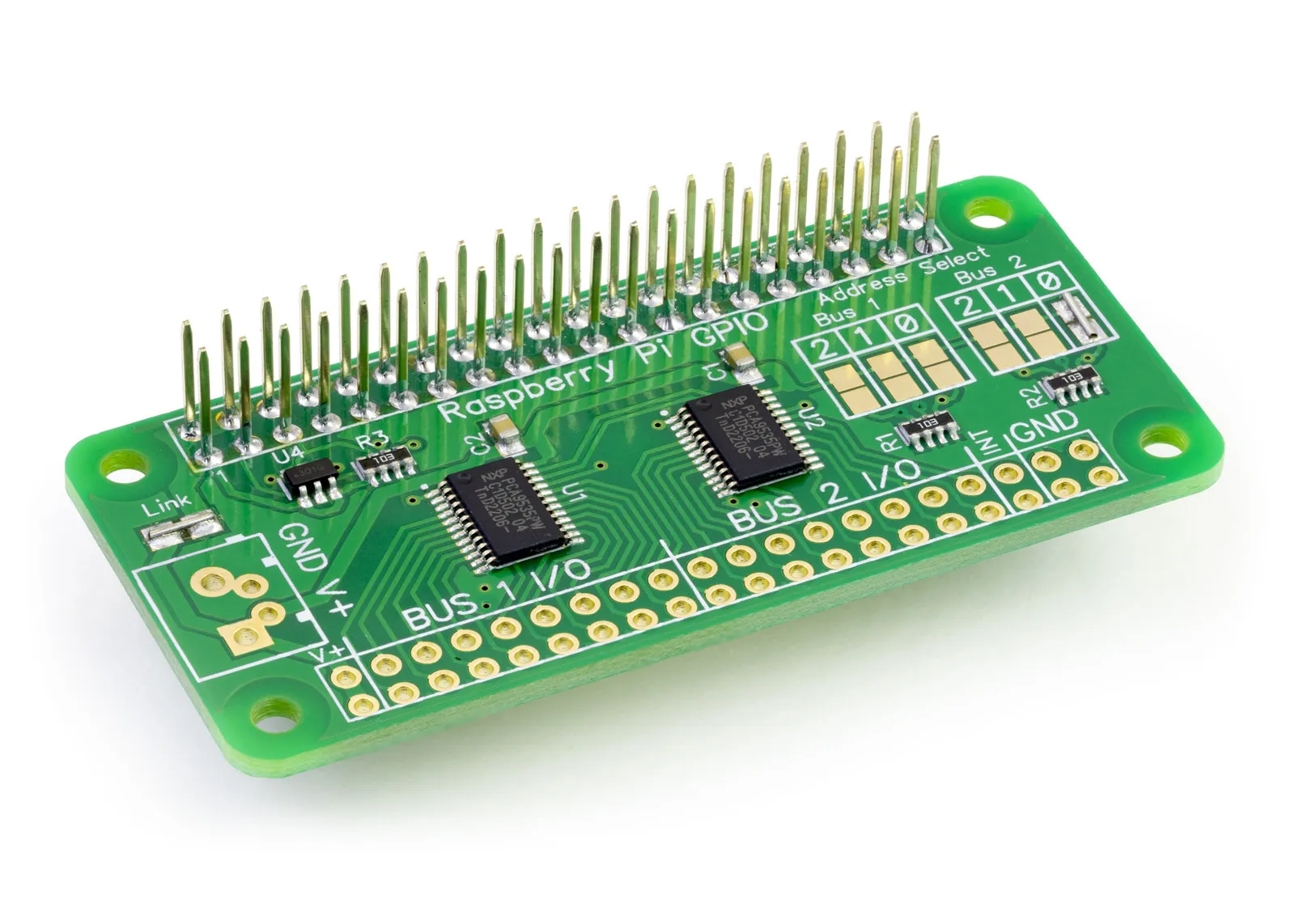
IO Zero 32
32 channel digital I/O development board for the Raspberry Pi and Single-Board Computers
£9.89 ex VAT
You will need this board: IO Zero 32 - 32 channel digital I/O development board
This tutorial will use an IO Zero 32 with an ESP32-P4 development board running ESPHome. We will set up the first PCA9535 chip as 16 inputs and log every change to the console, then set up the second chip as 16 outputs that you can switch on and off from a web page. You will need a Waveshare ESP32-P4-Module-DEV-KIT, an IO Zero 32, some jumper wires, a push button, a 10K resistor, an LED and a 500R resistor.
We will use the ESPHome Device Builder to write the configuration and install it on the ESP32-P4. ESPHome Device Builder runs as a Home Assistant add-on or as a standalone app on your computer; see the ESPHome getting started guide if you have not installed it yet.
ESPHome does not use a program in the same way as our Python library. Instead, you describe your hardware in a YAML configuration file, and ESPHome builds and installs the firmware for you. Each section of the file sets up one part of the system, so we will build the file up one section at a time.
We are using the Waveshare ESP32-P4-Module-DEV-KIT for this tutorial because it has a 40-pin GPIO header with the same layout as the Raspberry Pi, so the IO Zero 32 plugs straight onto it. The ESP32-P4 does not have Wi-Fi built in; the DEV-KIT includes an ESP32-C6 co-processor that provides Wi-Fi, and ESPHome talks to it using the esp32_hosted component.
Stage 1 - Setting up the ESP32-P4
Make sure the ESP32-P4-Module-DEV-KIT is disconnected from power before you fit the IO Zero 32, to minimise the risk of damaging either board.
Line up pin 1 on the IO Zero 32 with pin 1 on the 40-pin header of the DEV-KIT and press the IO Zero 32 down firmly onto the pins. The header carries the 3.3V and 5V supplies and the I2C bus from the ESP32-P4, so no extra wiring is needed.
On the DEV-KIT, the I2C bus uses GPIO7 for SDA on header pin 3 and GPIO8 for SCL on header pin 5, the same positions as the I2C pins on a Raspberry Pi.
Open ESPHome Device Builder and click New Device. Give your device the name p4-pca9535, choose ESP32-P4 as the device type and click Skip to finish the wizard without installing. Then click Edit on the new device card to open the configuration file.
The wizard creates a basic configuration for you, including an encryption key for the api section and a password for the ota section. Keep those two values, as you will need them later. Replace the rest of the file with the sections below.
At the top of the file, we set the name of the device.
substitutions:
  name: "p4-pca9535"
  friendly_name: "P4 PCA9535 IO"
esphome:
  name: ${name}
  friendly_name: ${friendly_name}
The substitutions section works like a set of variables. ${name} is replaced with p4-pca9535 when ESPHome builds the firmware, so you only need to change the name in one place.
Next, we tell ESPHome which chip we are using and set up the ESP32-C6 co-processor for Wi-Fi.
esp32:
  board: esp32-p4-evboard
  flash_size: 16MB
  framework:
    type: esp-idf
esp32_hosted:
  variant: ESP32C6
  active_high: true
  reset_pin: GPIO54
  cmd_pin: GPIO19
  clk_pin: GPIO18
  d0_pin: GPIO14
  d1_pin: GPIO15
  d2_pin: GPIO16
  d3_pin: GPIO17
The ESP32-P4 is only supported by the esp-idf framework, so we must set that here. The esp32_hosted pins are the ones the DEV-KIT uses to connect the ESP32-P4 to its ESP32-C6 over an SDIO bus.
Next, we add the logger, Wi-Fi and the services that let you update the board over the network.
logger:
  level: DEBUG
  hardware_uart: UART0
api:
ota:
  - platform: esphome
wifi:
  ssid: !secret wifi_ssid
  password: !secret wifi_password
  ap:
    ssid: "P4-PCA9535 Fallback"
    password: !secret fallback_ap_password
captive_portal:
The logger sends messages to the console, which is how we will see the inputs changing. api lets Home Assistant connect to the board, and ota lets you install new firmware over Wi-Fi after the first install. Paste the encryption key and password that the wizard created back into the api and ota sections.
The ap section creates a fallback hotspot. If the ESP32-P4 cannot connect to your Wi-Fi network, it starts its own network called P4-PCA9535 Fallback. Connect to it with your phone or laptop, and captive_portal shows a page where you can enter the correct Wi-Fi details.
!secret tells ESPHome to read the value from your secrets file, so your passwords are not stored in the configuration. Click Secrets in ESPHome Device Builder and add wifi_ssid, wifi_password and fallback_ap_password.
To control the outputs from a web browser, we add the ESPHome web server.
web_server:
  port: 80
  version: 3
  log: true
The web server shows every sensor and switch in the configuration on a single page, and log: true adds the console log to the page too.
Finally, we set up the I2C bus.
i2c:
  sda: GPIO7
  scl: GPIO8
  frequency: 400kHz
  scan: true
The PCA9535 supports I2C speeds up to 400kHz. scan: true makes the ESP32-P4 search the bus when it starts and list every device it finds in the log, which is a quick way to check that the IO Zero 32 is connected. The DEV-KIT already has pull-up resistors on its I2C bus, so we do not need to add any.
Stage 2 - Reading the inputs
The IO Zero 32 contains two PCA9535 16-bit I/O expanders from NXP. Each PCA9535 has 16 I/O pins, which can be configured individually as inputs or outputs. By default, the first chip uses I2C address 0x20 and the second chip uses I2C address 0x21. If you have changed the address selection solder jumpers on your IO Zero 32, you will need to change these numbers to match.
Unlike the MCP23017, the PCA9535 does not have internal pull-up resistors, so we need to add one. Connect the 10K resistor between Bus 1 - Pin 1 and 3.3V, then connect the push button between Bus 1 - Pin 1 and ground.
ESPHome does not have a separate component for the PCA9535. Instead, it uses the pca9554 component, which supports several chips in the same family, including the PCA9535.
pca9554:
  - id: pca_in
    address: 0x20
    pin_count: 16
  - id: pca_out
    address: 0x21
    pin_count: 16
The PCA9554 is an 8-pin chip, so pin_count: 16 tells ESPHome that we are using the 16-pin PCA9535. This line is important; without it, the PCA9535 will not work at all, not even on the first 8 pins.
Each chip gets an id, which we will use to tell ESPHome which chip a pin belongs to. We have called the first chip pca_in, as we will use it for inputs, and the second chip pca_out.
Next, we create a binary sensor for the button. A binary sensor is ESPHome's name for anything that can only be on or off.
binary_sensor:
  - platform: gpio
    name: "Input 1"
    pin:
      pca9554: pca_in
      number: 0
      mode:
        input: true
      inverted: true
pca9554: pca_in tells ESPHome that the pin is on the first PCA9535 rather than on the ESP32-P4 itself. ESPHome numbers the pins from 0 to 15, so pin 1 on the IO Zero 32 is number 0, and pin 16 is number 15. Pins 1 to 8 are on port 0 of the PCA9535 (IO0_0 to IO0_7), and pins 9 to 16 are on port 1 (IO1_0 to IO1_7).
mode sets the pin as an input. The 10K resistor holds the pin high when the button is not pressed. When you press the button, it connects the pin to ground and the pin goes low.
A pressed button reads as low, which is the opposite of what we want, so inverted: true flips the reading. Now pressing the button turns the sensor on, and releasing it turns the sensor off. If you connect an input that is active high, such as a sensor that outputs 3.3V when it is triggered, set inverted to false.
Mechanical buttons do not switch cleanly; the contacts bounce for a few milliseconds and can register several presses. We can stop this by adding a filter.
    filters:
      - delayed_on_off: 20ms
delayed_on_off only accepts a change when the input has stayed in its new state for 20ms, which is long enough to ignore the bounce.
Finally, we want a message in the console every time the input changes. We can do this with an on_state trigger.
    on_state:
      - logger.log:
          format: "Input 1 (0x20 IO0_0) = %s"
          args: [ 'x ? "ON" : "OFF"' ]
          level: INFO
on_state runs every time the sensor changes. Inside the trigger, x holds the new state, true or false. The args line converts it to the text ON or OFF, and %s in the format line is replaced with that text.
To read all 16 inputs, copy the binary sensor 15 more times, changing the name, the number and the text in the log message for each one. Remember that every input you use needs its own pull-up resistor. You will find all 16 in the full listing at the end of this tutorial.
Stage 3 - Controlling the outputs
Now we have an input that logs to the console. Let us use the second PCA9535 to switch an LED on and off from a web page.
Connect the LED and the 500R resistor in series between Bus 2 - Pin 1 and a ground pin on the IO Zero 32. The maximum current for an individual pin on the IO Zero 32 is 50mA, and 160mA in total for each PCA9535, so by using the 500R resistor in series with the LED, we keep the current well within those limits.
[Image: LED and resistor connected to Bus 2 - Pin 1 of the IO Zero 32]
We will control the output with a switch.
switch:
  - platform: gpio
    name: "Output 1"
    restore_mode: ALWAYS_OFF
    pin:
      pca9554: pca_out
      number: 0
      mode:
        output: true
This time the pin uses pca_out, the second PCA9535, and the mode sets it as an output. restore_mode: ALWAYS_OFF makes sure the output starts in the off state every time the ESP32-P4 starts, so nothing connected to the IO Zero 32 switches on unexpectedly after a power cut.
As with the inputs, copy the switch 15 more times to use all 16 outputs, changing the name and the number for each one.
Stage 4 - Installing and testing
That is everything we need; your configuration should now look like this.
substitutions:
  name: "p4-pca9535"
  friendly_name: "P4 PCA9535 IO"
esphome:
  name: ${name}
  friendly_name: ${friendly_name}
esp32:
  board: esp32-p4-evboard
  flash_size: 16MB
  framework:
    type: esp-idf
esp32_hosted:
  variant: ESP32C6
  active_high: true
  reset_pin: GPIO54
  cmd_pin: GPIO19
  clk_pin: GPIO18
  d0_pin: GPIO14
  d1_pin: GPIO15
  d2_pin: GPIO16
  d3_pin: GPIO17
logger:
  level: DEBUG
  hardware_uart: UART0
api:
ota:
  - platform: esphome
wifi:
  ssid: !secret wifi_ssid
  password: !secret wifi_password
  ap:
    ssid: "P4-PCA9535 Fallback"
    password: !secret fallback_ap_password
captive_portal:
web_server:
  port: 80
  version: 3
  log: true
i2c:
  sda: GPIO7
  scl: GPIO8
  frequency: 400kHz
  scan: true
pca9554:
  - id: pca_in
    address: 0x20
    pin_count: 16
  - id: pca_out
    address: 0x21
    pin_count: 16
binary_sensor:
  - platform: gpio
    name: "Input 1"
    pin: { pca9554: pca_in, number: 0, mode: { input: true }, inverted: true }
    filters: [ delayed_on_off: 20ms ]
    on_state:
      - logger.log: { format: "Input 1 (0x20 IO0_0) = %s", args: [ 'x ? "ON" : "OFF"' ], level: INFO }
  - platform: gpio
    name: "Input 2"
    pin: { pca9554: pca_in, number: 1, mode: { input: true }, inverted: true }
    filters: [ delayed_on_off: 20ms ]
    on_state:
      - logger.log: { format: "Input 2 (0x20 IO0_1) = %s", args: [ 'x ? "ON" : "OFF"' ], level: INFO }
  - platform: gpio
    name: "Input 3"
    pin: { pca9554: pca_in, number: 2, mode: { input: true }, inverted: true }
    filters: [ delayed_on_off: 20ms ]
    on_state:
      - logger.log: { format: "Input 3 (0x20 IO0_2) = %s", args: [ 'x ? "ON" : "OFF"' ], level: INFO }
  - platform: gpio
    name: "Input 4"
    pin: { pca9554: pca_in, number: 3, mode: { input: true }, inverted: true }
    filters: [ delayed_on_off: 20ms ]
    on_state:
      - logger.log: { format: "Input 4 (0x20 IO0_3) = %s", args: [ 'x ? "ON" : "OFF"' ], level: INFO }
  - platform: gpio
    name: "Input 5"
    pin: { pca9554: pca_in, number: 4, mode: { input: true }, inverted: true }
    filters: [ delayed_on_off: 20ms ]
    on_state:
      - logger.log: { format: "Input 5 (0x20 IO0_4) = %s", args: [ 'x ? "ON" : "OFF"' ], level: INFO }
  - platform: gpio
    name: "Input 6"
    pin: { pca9554: pca_in, number: 5, mode: { input: true }, inverted: true }
    filters: [ delayed_on_off: 20ms ]
    on_state:
      - logger.log: { format: "Input 6 (0x20 IO0_5) = %s", args: [ 'x ? "ON" : "OFF"' ], level: INFO }
  - platform: gpio
    name: "Input 7"
    pin: { pca9554: pca_in, number: 6, mode: { input: true }, inverted: true }
    filters: [ delayed_on_off: 20ms ]
    on_state:
      - logger.log: { format: "Input 7 (0x20 IO0_6) = %s", args: [ 'x ? "ON" : "OFF"' ], level: INFO }
  - platform: gpio
    name: "Input 8"
    pin: { pca9554: pca_in, number: 7, mode: { input: true }, inverted: true }
    filters: [ delayed_on_off: 20ms ]
    on_state:
      - logger.log: { format: "Input 8 (0x20 IO0_7) = %s", args: [ 'x ? "ON" : "OFF"' ], level: INFO }
  - platform: gpio
    name: "Input 9"
    pin: { pca9554: pca_in, number: 8, mode: { input: true }, inverted: true }
    filters: [ delayed_on_off: 20ms ]
    on_state:
      - logger.log: { format: "Input 9 (0x20 IO1_0) = %s", args: [ 'x ? "ON" : "OFF"' ], level: INFO }
  - platform: gpio
    name: "Input 10"
    pin: { pca9554: pca_in, number: 9, mode: { input: true }, inverted: true }
    filters: [ delayed_on_off: 20ms ]
    on_state:
      - logger.log: { format: "Input 10 (0x20 IO1_1) = %s", args: [ 'x ? "ON" : "OFF"' ], level: INFO }
  - platform: gpio
    name: "Input 11"
    pin: { pca9554: pca_in, number: 10, mode: { input: true }, inverted: true }
    filters: [ delayed_on_off: 20ms ]
    on_state:
      - logger.log: { format: "Input 11 (0x20 IO1_2) = %s", args: [ 'x ? "ON" : "OFF"' ], level: INFO }
  - platform: gpio
    name: "Input 12"
    pin: { pca9554: pca_in, number: 11, mode: { input: true }, inverted: true }
    filters: [ delayed_on_off: 20ms ]
    on_state:
      - logger.log: { format: "Input 12 (0x20 IO1_3) = %s", args: [ 'x ? "ON" : "OFF"' ], level: INFO }
  - platform: gpio
    name: "Input 13"
    pin: { pca9554: pca_in, number: 12, mode: { input: true }, inverted: true }
    filters: [ delayed_on_off: 20ms ]
    on_state:
      - logger.log: { format: "Input 13 (0x20 IO1_4) = %s", args: [ 'x ? "ON" : "OFF"' ], level: INFO }
  - platform: gpio
    name: "Input 14"
    pin: { pca9554: pca_in, number: 13, mode: { input: true }, inverted: true }
    filters: [ delayed_on_off: 20ms ]
    on_state:
      - logger.log: { format: "Input 14 (0x20 IO1_5) = %s", args: [ 'x ? "ON" : "OFF"' ], level: INFO }
  - platform: gpio
    name: "Input 15"
    pin: { pca9554: pca_in, number: 14, mode: { input: true }, inverted: true }
    filters: [ delayed_on_off: 20ms ]
    on_state:
      - logger.log: { format: "Input 15 (0x20 IO1_6) = %s", args: [ 'x ? "ON" : "OFF"' ], level: INFO }
  - platform: gpio
    name: "Input 16"
    pin: { pca9554: pca_in, number: 15, mode: { input: true }, inverted: true }
    filters: [ delayed_on_off: 20ms ]
    on_state:
      - logger.log: { format: "Input 16 (0x20 IO1_7) = %s", args: [ 'x ? "ON" : "OFF"' ], level: INFO }
switch:
  - { platform: gpio, name: "Output 1",  restore_mode: ALWAYS_OFF, pin: { pca9554: pca_out, number: 0,  mode: { output: true } } }
  - { platform: gpio, name: "Output 2",  restore_mode: ALWAYS_OFF, pin: { pca9554: pca_out, number: 1,  mode: { output: true } } }
  - { platform: gpio, name: "Output 3",  restore_mode: ALWAYS_OFF, pin: { pca9554: pca_out, number: 2,  mode: { output: true } } }
  - { platform: gpio, name: "Output 4",  restore_mode: ALWAYS_OFF, pin: { pca9554: pca_out, number: 3,  mode: { output: true } } }
  - { platform: gpio, name: "Output 5",  restore_mode: ALWAYS_OFF, pin: { pca9554: pca_out, number: 4,  mode: { output: true } } }
  - { platform: gpio, name: "Output 6",  restore_mode: ALWAYS_OFF, pin: { pca9554: pca_out, number: 5,  mode: { output: true } } }
  - { platform: gpio, name: "Output 7",  restore_mode: ALWAYS_OFF, pin: { pca9554: pca_out, number: 6,  mode: { output: true } } }
  - { platform: gpio, name: "Output 8",  restore_mode: ALWAYS_OFF, pin: { pca9554: pca_out, number: 7,  mode: { output: true } } }
  - { platform: gpio, name: "Output 9",  restore_mode: ALWAYS_OFF, pin: { pca9554: pca_out, number: 8,  mode: { output: true } } }
  - { platform: gpio, name: "Output 10", restore_mode: ALWAYS_OFF, pin: { pca9554: pca_out, number: 9,  mode: { output: true } } }
  - { platform: gpio, name: "Output 11", restore_mode: ALWAYS_OFF, pin: { pca9554: pca_out, number: 10, mode: { output: true } } }
  - { platform: gpio, name: "Output 12", restore_mode: ALWAYS_OFF, pin: { pca9554: pca_out, number: 11, mode: { output: true } } }
  - { platform: gpio, name: "Output 13", restore_mode: ALWAYS_OFF, pin: { pca9554: pca_out, number: 12, mode: { output: true } } }
  - { platform: gpio, name: "Output 14", restore_mode: ALWAYS_OFF, pin: { pca9554: pca_out, number: 13, mode: { output: true } } }
  - { platform: gpio, name: "Output 15", restore_mode: ALWAYS_OFF, pin: { pca9554: pca_out, number: 14, mode: { output: true } } }
  - { platform: gpio, name: "Output 16", restore_mode: ALWAYS_OFF, pin: { pca9554: pca_out, number: 15, mode: { output: true } } }
The full listing uses a shorter way of writing each pin, with the settings in curly brackets on one line. It works in exactly the same way as the longer form we used above and keeps the file easier to read.
Click Save, then Install. For the first install, choose Plug into this computer and connect the DEV-KIT to your computer with a USB cable. After the first install, you can choose Wirelessly to update the board over Wi-Fi.
When the install finishes, the log window opens. Near the top, you should see the I2C scan find the devices on the bus:
[I][i2c.idf]: Results from bus scan:
[I][i2c.idf]: Found device at address 0x18
[I][i2c.idf]: Found device at address 0x20
[I][i2c.idf]: Found device at address 0x21
The device at 0x18 is the ES8311 audio chip on the DEV-KIT, which shares the same I2C bus. 0x20 and 0x21 are the two PCA9535 chips on the IO Zero 32.
Press and release the button, and you should see:
[I][main]: Input 1 (0x20 IO0_0) = ON
[I][main]: Input 1 (0x20 IO0_0) = OFF
To control the LED, open a web browser on the same network and go to http://p4-pca9535.local. If that address does not work on your computer, use the IP address shown in the log after the board connects to Wi-Fi. Click the switch for Output 1, and the LED should turn on.
If the scan does not find 0x20 or 0x21, check that the IO Zero 32 is pushed fully onto the 40-pin header and that pin 1 lines up with pin 1 on the DEV-KIT. If an input changes on its own, check that its pull-up resistor is connected; a PCA9535 input with nothing connected floats and can read either high or low.
Also useful for your Raspberry Pi project
Temperature & Sensing
1 Wire Pi Plus
Connect dozens of 1-Wire sensors - temperature, iButtons, EEPROMs - via a single GPIO pin. Stacks directly on the 40-pin header.
Analogue I/O
ADC Pi
Read up to 8 analogue inputs - perfect for pairing with your temperature sensors or other analogue-output devices.
All-in-one
Expander Pi
Combines ADC, DAC, 32 GPIO ports and a real-time clock on one board. The most versatile board for complex Raspberry Pi projects.
