The AB Electronics UK Knowledge Base provides support solutions, tutorials and troubleshooting guides.

YOU WILL NEED THIS BOARD
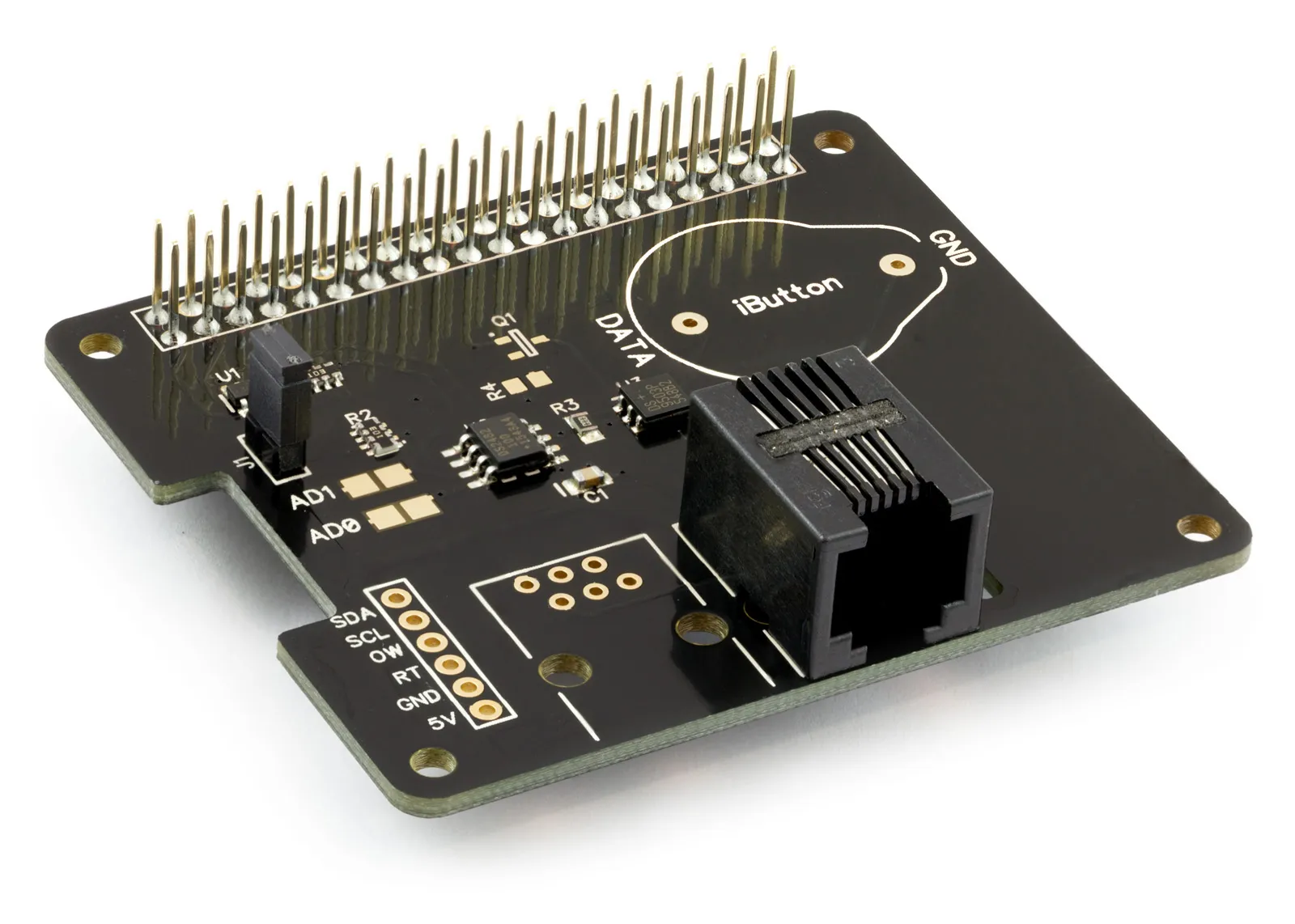
1 Wire Pi Plus
1 Wire interface development board for the Raspberry Pi and Single-Board Computers
£10.79 ex VAT
You will need this board: 1 Wire Pi Plus - 1 Wire interface development board for the Raspberry Pi and Single-Board Computers
This tutorial will use a 1 Wire Pi Plus with an ESP32-P4 development board running ESPHome. We will search the 1-Wire bus for connected devices and list them in the console and on a web page, then read the temperature from a DS18B20 temperature sensor. You will need a Waveshare ESP32-P4-Module-DEV-KIT, a 1 Wire Pi Plus and a DS18B20 temperature sensor with an RJ12 plug or wires you can connect to the 1 Wire Pi Plus.
1-Wire is a bus that lets you connect many devices to a single data wire, with each device identified by its own unique 64-bit address. It is often used for temperature sensors such as the DS18B20, as you can run long cables and connect dozens of sensors to the same bus.
We will use the ESPHome Device Builder to write the configuration and install it on the ESP32-P4. ESPHome Device Builder runs as a Home Assistant add-on or as a standalone app on your computer; see the ESPHome getting started guide if you have not installed it yet.
We are using the Waveshare ESP32-P4-Module-DEV-KIT for this tutorial because it has a 40-pin GPIO header with the same layout as the Raspberry Pi, so the 1 Wire Pi Plus plugs straight onto it. The ESP32-P4 does not have Wi-Fi built in; the DEV-KIT includes an ESP32-C6 co-processor that provides Wi-Fi, and ESPHome talks to it using the esp32_hosted component.
Stage 1 - Setting up the ESP32-P4
The 1 Wire Pi Plus is supplied with the 40-pin GPIO connector, the RJ12 socket and the 2-pin power jumper unsoldered, so solder these to the board first. The power jumper connects the 1-Wire interface to the 5V pin on the GPIO header; if you want to power your 1-Wire devices from a separate 5V supply, leave the jumper off and connect the supply to the external 5V input instead.
Make sure the ESP32-P4-Module-DEV-KIT is disconnected from power, then line up pin 1 on the 1 Wire Pi Plus with pin 1 on the 40-pin header of the DEV-KIT and press the 1 Wire Pi Plus down firmly onto the pins. On the DEV-KIT, the I2C bus uses GPIO7 for SDA on header pin 3 and GPIO8 for SCL on header pin 5.
Open ESPHome Device Builder and click New Device. Give your device the name p4-ds2482-1wire, choose ESP32-P4 as the device type and click Skip to finish the wizard without installing. Then click Edit on the new device card to open the configuration file. Keep the api encryption key and the ota password that the wizard created, and replace the rest of the file with the sections below.
The first part of the configuration is the same as in our other ESP32-P4 tutorials. It sets the device name, the ESP32-P4 chip, the ESP32-C6 Wi-Fi co-processor, the logger, Wi-Fi, the web server and the I2C bus.
substitutions:
  name: "p4-ds2482-1wire"
  friendly_name: "P4 DS2482 1-Wire"
esphome:
  name: ${name}
  friendly_name: ${friendly_name}
esp32:
  board: esp32-p4-evboard
  flash_size: 16MB
  framework:
    type: esp-idf
esp32_hosted:
  variant: ESP32C6
  active_high: true
  reset_pin: GPIO54
  cmd_pin: GPIO19
  clk_pin: GPIO18
  d0_pin: GPIO14
  d1_pin: GPIO15
  d2_pin: GPIO16
  d3_pin: GPIO17
logger:
  level: DEBUG
  hardware_uart: UART0
api:
ota:
  - platform: esphome
wifi:
  ssid: !secret wifi_ssid
  password: !secret wifi_password
web_server:
  port: 80
  version: 3
  log: true
i2c:
  sda: GPIO7
  scl: GPIO8
  frequency: 400kHz
  scan: true
Paste the encryption key and password that the wizard created back into the api and ota sections, and check that wifi_ssid and wifi_password are set in Secrets.
Stage 2 - Finding the connected devices
The 1 Wire Pi Plus uses the DS2482-100 from Analog Devices, an I2C to 1-Wire bridge. The ESP32-P4 sends commands to the DS2482-100 over the I2C bus, and the DS2482-100 handles the timing on the 1-Wire bus for it. The DS2482-100 can use one of four I2C addresses, from 0x18 to 0x1A, set by the address selection solder jumpers on the 1 Wire Pi Plus.
Important: the ESP32-P4-Module-DEV-KIT has an ES8311 audio chip on its I2C bus at address 0x18, which is also the default address of the DS2482-100. Two devices cannot share the same address on one bus, so before you fit the 1 Wire Pi Plus, set its address selection jumpers for address 0x1A. See the 1 Wire Pi Plus product page for the jumper settings.
Connect your DS18B20 to the RJ12 socket on the 1 Wire Pi Plus. The socket uses the following pins:
| RJ12 pin | Signal | DS18B20 pin |
|---|---|---|
| 1 | 5V | VDD |
| 2 | Ground | GND |
| 3 | 1-Wire data (OW) | DQ |
| 4 | 1-Wire return (RT) | - |
| 5 and 6 | Not connected | - |
ESPHome includes support for the DS2482-100 with its ds248x component. First, we add the bridge.
ds248x:
  - id: ow_bridge
    type: ds2482-100
    address: 0x1A
The ds248x component supports several chips in the same family, so type tells ESPHome which one we are using. address is the I2C address of the DS2482-100, which we have set to 0x1A to avoid the audio chip on the DEV-KIT. If you have set the jumpers for a different address, change it to match.
Next, we add the 1-Wire bus on the bridge.
one_wire:
  - platform: ds248x
    ds248x_id: ow_bridge
    id: ow_bus
ds248x_id connects the bus to the bridge we just added, and id gives the bus a name we can use for our sensors.
When the ESP32-P4 starts, ESPHome searches the 1-Wire bus and lists every device it finds in the log, together with the device type. It does this even when you have not added any sensors yet, so this is all you need to find out what is connected.
Click Save, then Install, and choose Plug into this computer for the first install. When the log window opens, look for the list of devices:
[C][ds248x.one_wire]:   Found devices:
[C][ds248x.one_wire]:     0x1C0000031EDD2A28 (DS18B20)
The long number is the device's 64-bit address, which is unique to every 1-Wire device. The last two digits are the family code, which tells ESPHome what type of device it is; 28 is the family code for a DS18B20. Make a note of the address, as we will use it in Stage 4.
Stage 3 - Listing the devices on the web page
The device list in the log is useful, but it only appears when the ESP32-P4 starts. Let us also show the devices on the web page and in Home Assistant, and add a button to search the bus again.
First, we add a text sensor that lists every device on the bus.
text_sensor:
  - platform: template
    id: ow_device_list
    name: "1-Wire Devices"
    update_interval: 60s
    lambda: |-
      const auto &devices = id(ow_bus)->get_devices();
      if (devices.empty()) return {"none found"};
      std::string list;
      char buf[40];
      for (auto addr : devices) {
        snprintf(buf, sizeof(buf), "0x%016llX (%s)", (unsigned long long) addr,
                 LOG_STR_ARG(id(ow_bus)->get_model_str(addr & 0xff)));
        if (!list.empty()) list += ", ";
        list += buf;
      }
      return list;
A template text sensor shows whatever its lambda returns. id(ow_bus)->get_devices() returns the list of addresses that ESPHome found on the bus. If the list is empty, the sensor shows none found.
For each device, snprintf formats the address as a 16-digit hexadecimal number, and get_model_str looks up the device type from the family code in the last byte of the address. The lambda joins the devices together with commas, so the sensor shows a line like 0x1C0000031EDD2A28 (DS18B20).
Home Assistant limits a text sensor to 255 characters, which is enough for around 8 devices. If you have more devices on your bus, use the log to see the full list.
Next, we add a sensor that shows how many devices were found.
sensor:
  - platform: template
    id: ow_device_count
    name: "1-Wire Device Count"
    accuracy_decimals: 0
    update_interval: 60s
    lambda: |-
      return id(ow_bus)->get_devices().size();
accuracy_decimals: 0 shows the count as a whole number.
ESPHome only searches the bus when it starts. If you connect a new sensor while the ESP32-P4 is running, it will not appear until you restart the board. To save restarting, we add a button that searches the bus again.
button:
  - platform: template
    name: "Rescan 1-Wire Bus"
    on_press:
      - lambda: |-
          id(ow_bus)->search();
          const auto &devices = id(ow_bus)->get_devices();
          ESP_LOGI("onewire", "Found %u device(s):", (unsigned) devices.size());
          for (auto addr : devices) {
            ESP_LOGI("onewire", "  0x%016llX (%s)", (unsigned long long) addr,
                     LOG_STR_ARG(id(ow_bus)->get_model_str(addr & 0xff)));
          }
      - component.update: ow_device_list
      - component.update: ow_device_count
When you press the button, search() clears the device list and searches the bus again. The lambda then writes the new list to the log. component.update tells the text sensor and the count sensor to update straight away, rather than waiting up to 60 seconds for their next update.
The rescan shows you what is connected, but it does not create new sensors. To read a new device, add a sensor for it as we do in Stage 4 and install the updated configuration.
Stage 4 - Reading the temperature
Now we know which devices are on the bus. Let us read the temperature from the DS18B20.
ESPHome reads Dallas temperature sensors, including the DS18B20, with the dallas_temp platform. Add it to the sensor section, below the device count sensor.
  - platform: dallas_temp
    one_wire_id: ow_bus
    index: 0
    name: "Temperature"
    resolution: 12
    update_interval: 10s
one_wire_id tells ESPHome which 1-Wire bus the sensor is on. index: 0 uses the first device found on the bus, which is the easiest way to start when you only have one sensor connected.
resolution sets the number of bits the DS18B20 uses for each reading, from 9 to 12. At 12 bits, the temperature is measured in steps of 0.0625°C, and each reading takes up to 750ms. update_interval sets how often the temperature is read.
To write each reading to the console, we add an on_value trigger.
    on_value:
      - logger.log:
          format: "Temperature: %.2f °C"
          args: [ 'x' ]
          level: INFO
on_value runs every time the sensor publishes a new value, and x holds the temperature. %.2f in the format line shows it with two decimal places.
Using index is quick, but if you add more sensors to the bus, the order they are found in can change, and a reading could end up with the wrong name. Once you know the address of your sensor from Stage 2, replace index: 0 with its address:
  - platform: dallas_temp
    one_wire_id: ow_bus
    address: 0x1C0000031EDD2A28
    name: "Temperature"
The address always points to the same sensor, however many devices you add to the bus. To read more sensors, add a dallas_temp sensor for each one with its own address and name, such as Inside Temperature and Outside Temperature.
Stage 5 - Installing and testing
That is everything we need; your configuration should now look like this.
substitutions:
  name: "p4-ds2482-1wire"
  friendly_name: "P4 DS2482 1-Wire"
esphome:
  name: ${name}
  friendly_name: ${friendly_name}
esp32:
  board: esp32-p4-evboard
  flash_size: 16MB
  framework:
    type: esp-idf
esp32_hosted:
  variant: ESP32C6
  active_high: true
  reset_pin: GPIO54
  cmd_pin: GPIO19
  clk_pin: GPIO18
  d0_pin: GPIO14
  d1_pin: GPIO15
  d2_pin: GPIO16
  d3_pin: GPIO17
logger:
  level: DEBUG
  hardware_uart: UART0
api:
ota:
  - platform: esphome
wifi:
  ssid: !secret wifi_ssid
  password: !secret wifi_password
web_server:
  port: 80
  version: 3
  log: true
i2c:
  sda: GPIO7
  scl: GPIO8
  frequency: 400kHz
  scan: true
ds248x:
  - id: ow_bridge
    type: ds2482-100
    address: 0x1A
one_wire:
  - platform: ds248x
    ds248x_id: ow_bridge
    id: ow_bus
text_sensor:
  - platform: template
    id: ow_device_list
    name: "1-Wire Devices"
    update_interval: 60s
    lambda: |-
      const auto &devices = id(ow_bus)->get_devices();
      if (devices.empty()) return {"none found"};
      std::string list;
      char buf[40];
      for (auto addr : devices) {
        snprintf(buf, sizeof(buf), "0x%016llX (%s)", (unsigned long long) addr,
                 LOG_STR_ARG(id(ow_bus)->get_model_str(addr & 0xff)));
        if (!list.empty()) list += ", ";
        list += buf;
      }
      return list;
sensor:
  - platform: template
    id: ow_device_count
    name: "1-Wire Device Count"
    accuracy_decimals: 0
    update_interval: 60s
    lambda: |-
      return id(ow_bus)->get_devices().size();
  - platform: dallas_temp
    one_wire_id: ow_bus
    index: 0
    name: "Temperature"
    resolution: 12
    update_interval: 10s
    on_value:
      - logger.log:
          format: "Temperature: %.2f °C"
          args: [ 'x' ]
          level: INFO
button:
  - platform: template
    name: "Rescan 1-Wire Bus"
    on_press:
      - lambda: |-
          id(ow_bus)->search();
          const auto &devices = id(ow_bus)->get_devices();
          ESP_LOGI("onewire", "Found %u device(s):", (unsigned) devices.size());
          for (auto addr : devices) {
            ESP_LOGI("onewire", "  0x%016llX (%s)", (unsigned long long) addr,
                     LOG_STR_ARG(id(ow_bus)->get_model_str(addr & 0xff)));
          }
      - component.update: ow_device_list
      - component.update: ow_device_count
Click Save, then Install. If you installed the configuration over USB in Stage 2, you can now choose Wirelessly to update the board over Wi-Fi.
When the install finishes, the log window opens. The I2C scan should find the ES8311 audio chip on the DEV-KIT at 0x18 and the DS2482-100 at 0x1A. ESPHome then lists the devices on the 1-Wire bus, and every 10 seconds you should see the temperature:
[I][main]: Temperature: 21.44 °C
Hold the DS18B20 between your fingers, and the temperature should rise within a few readings.
To see the device list, the device count and the temperature on one page, open a web browser on the same network and go to http://p4-ds2482-1wire.local. If that address does not work on your computer, use the IP address shown in the log after the board connects to Wi-Fi. Click Rescan 1-Wire Bus to search the bus again and update the list.
If the log shows Found no devices, check the connections to the RJ12 socket and that the power jumper is fitted, or that your external 5V supply is connected. If the temperature shows 85.0°C, the DS18B20 has not finished a reading; this is its power-on value, and it usually means the sensor is not getting enough power. If the DS2482-100 is not found at all, check its address jumpers, and check that the 1 Wire Pi Plus is pushed fully onto the 40-pin header and that pin 1 lines up with pin 1 on the DEV-KIT.
Also useful for your Raspberry Pi project
Temperature & Sensing
1 Wire Pi Plus
Connect dozens of 1-Wire sensors - temperature, iButtons, EEPROMs - via a single GPIO pin. Stacks directly on the 40-pin header.
Analogue I/O
ADC Pi
Read up to 8 analogue inputs - perfect for pairing with your temperature sensors or other analogue-output devices.
All-in-one
Expander Pi
Combines ADC, DAC, 32 GPIO ports and a real-time clock on one board. The most versatile board for complex Raspberry Pi projects.
